London · Captions guide
Subtitles and Captions for Brand Videos: Burned In, Styled and Accessible
Burned-in or a caption file, how to style and place captions, and why they matter for accessibility, with frames from our Avata 2 tutorial and the LighRent help videos.
- Words and camera
- Joshua Swain
- Published
- Reading time
- 5 min
- Filed under
- Guide
In brief
- Burned-in captions (also called open captions) are part of the picture: they always show, on every platform, and you control the font, colour and position.
- Our tutorial captions follow one set of rules from the first minute to the last: two or three words at a time, a heavy white typeface with a soft shadow, centred low in the frame, and one word in yellow.
- A caption that covers a face, a product or a piece of on-screen information is worse than no caption.
- The Web Content Accessibility Guidelines treat captions for pre-recorded video with sound as a basic requirement (success criterion 1.2.2, level A).
Contents 7 sections
“Captions are not a transcript stuck on the bottom. They are part of the edit, and they decide whether the video gets watched with the sound off.”
Subtitles and captions turn spoken words into text on screen. For brand videos they do two jobs: they keep people watching when the sound is off, and they make the video accessible to viewers who are deaf or hard of hearing. This guide shows how we caption, with frames from our nineteen-minute DJI Avata 2 tutorial on YouTube and the caption files we wrote for the LighRent app's help videos.

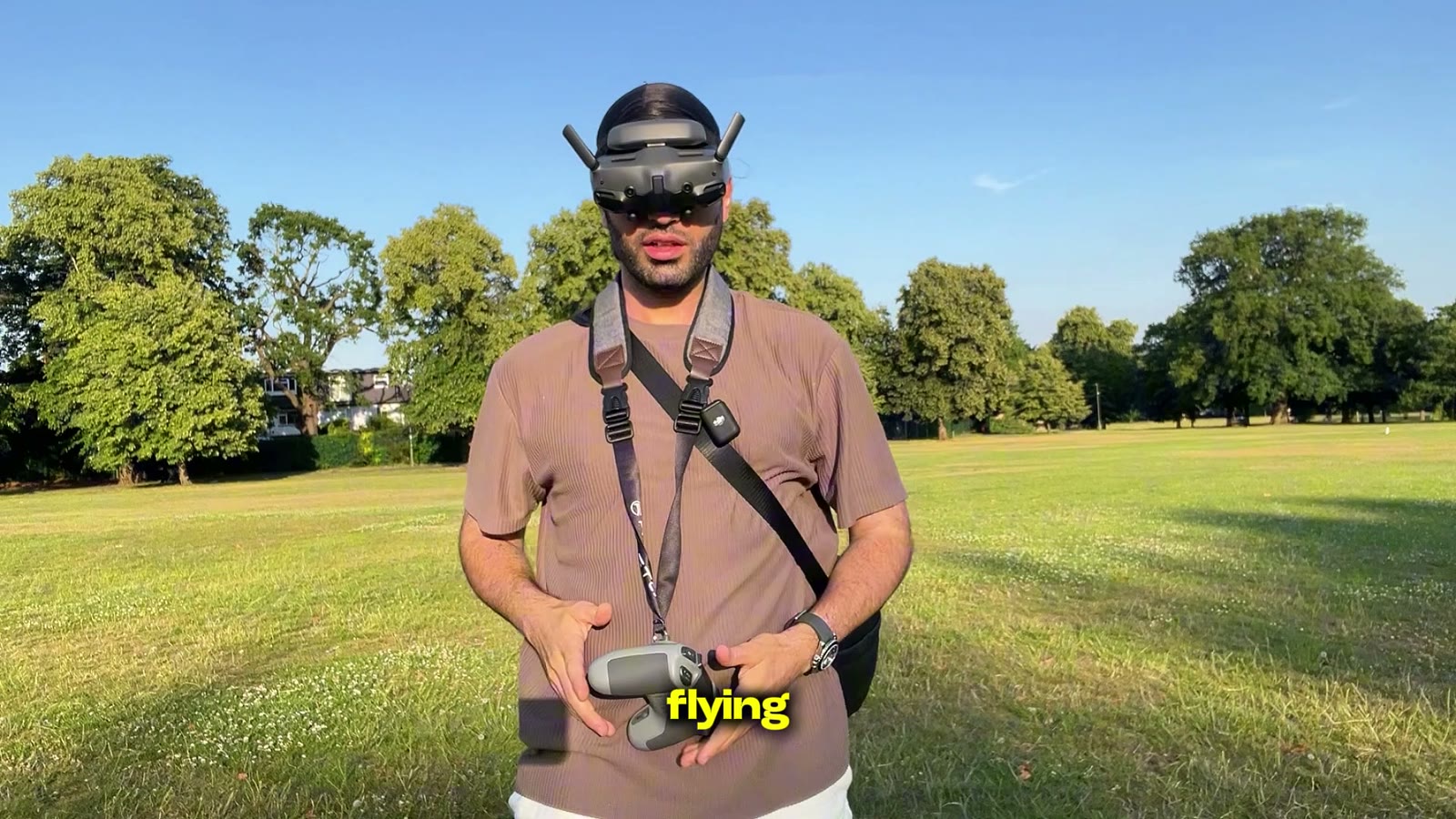
The opening line of our Avata 2 tutorial: two words on screen, one of them highlighted · SwainUK, 2026
The short version
- Burn captions in for social feeds; upload a caption file for YouTube and websites.
- Two or three words at a time for vertical and fast edits, one full sentence for tutorials.
- Highlight one word per line, the one that carries the meaning.
- Keep captions clear of faces, on-screen data and the app buttons of each platform.
- Check every caption against the audio by hand before export.
Burned-in captions or a caption file?
There are two ways to put words on a video. Burned-in captions (also called open captions) are part of the picture: they always show, on every platform, and you control the font, colour and position. A caption file (closed captions, usually .srt or .vtt) sits next to the video: the viewer can switch it on or off, the player draws it, and search engines and platforms can read the text.
| Where it plays | What we deliver | Why |
|---|---|---|
| Instagram, TikTok, Shorts | Burned-in, styled | Feeds often start muted, and the style is part of the edit |
| YouTube long-form | Burned-in for the style, plus a caption file | Viewers can turn the file on in their language; the burned-in words keep the pace |
| Website and app help videos | A .vtt caption file per video | The player shows it, it can be updated without re-exporting, and it is readable text |
| Events and talks | A caption file, burned in only for social cutdowns | Long talks need full sentences, not two-word punches |
For our own YouTube tutorials we burn in the styled captions during the edit. For the LighRent help centre we wrote one .vtt file for each of the twelve videos, so the player shows the text and we can fix a line without touching the video. YouTube accepts both .srt and .vtt files.
WEBVTT

1
00:00:01.200 --> 00:00:07.670
Tap Search and type what you need.

2
00:00:07.820 --> 00:00:11.330
Tap a listing to see photos, price and reviews.
The first two cues of the LighRent "book gear" help video caption file: one sentence per step.
How we style burned-in captions
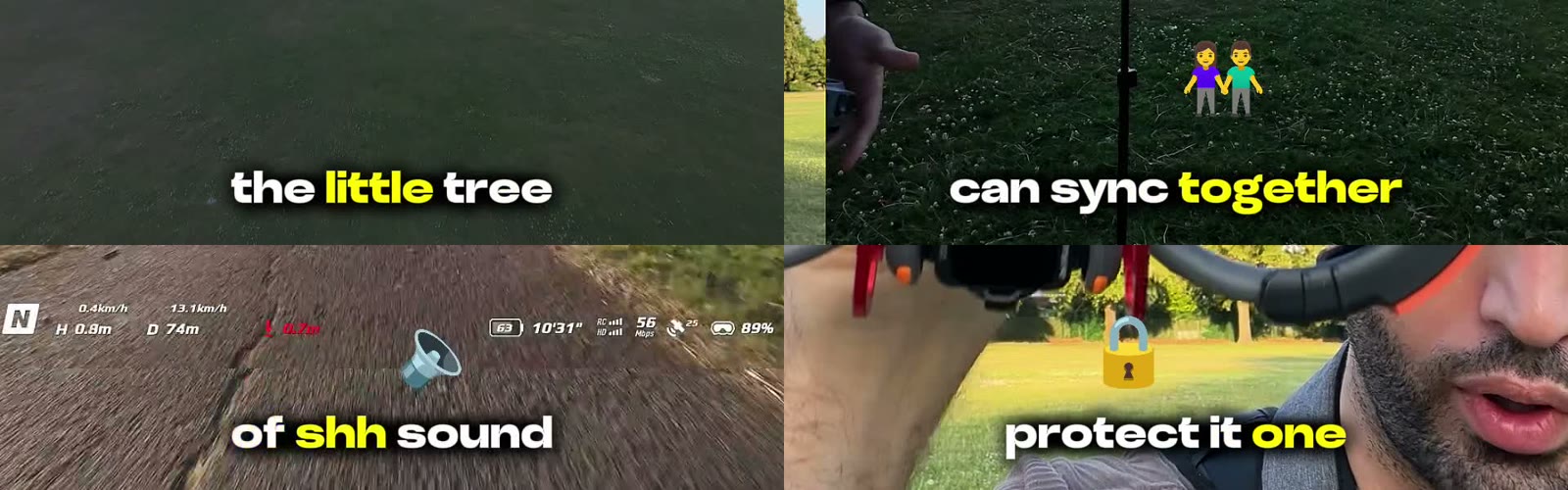
Our tutorial captions follow one set of rules from the first minute to the last: two or three words at a time, a heavy white typeface with a soft shadow, centred low in the frame, and one word in yellow. The yellow word is the one you would stress if you said the line out loud. Now and then a small emoji sits above the line, but only when it adds meaning, like a padlock on "protect it".
Short lines. Two or three words can be read in a glance while the eyes stay on the picture.
Weight beats size. A bold face with a shadow reads over grass, sky and tarmac without needing a box behind it.
Same place every time. The viewer learns where to look within seconds, so the caption never makes them search.
Match the speech. Captions change on the spoken words, not on the cuts.
Keep captions clear of what matters in the frame
A caption that covers a face, a product or a piece of on-screen information is worse than no caption. In the FPV tutorial the goggles view shows flight data across the lower third, so the caption sits just under it, clear of the numbers. Over a busy aerial shot, the bold white text and shadow keep the line readable without a background bar.
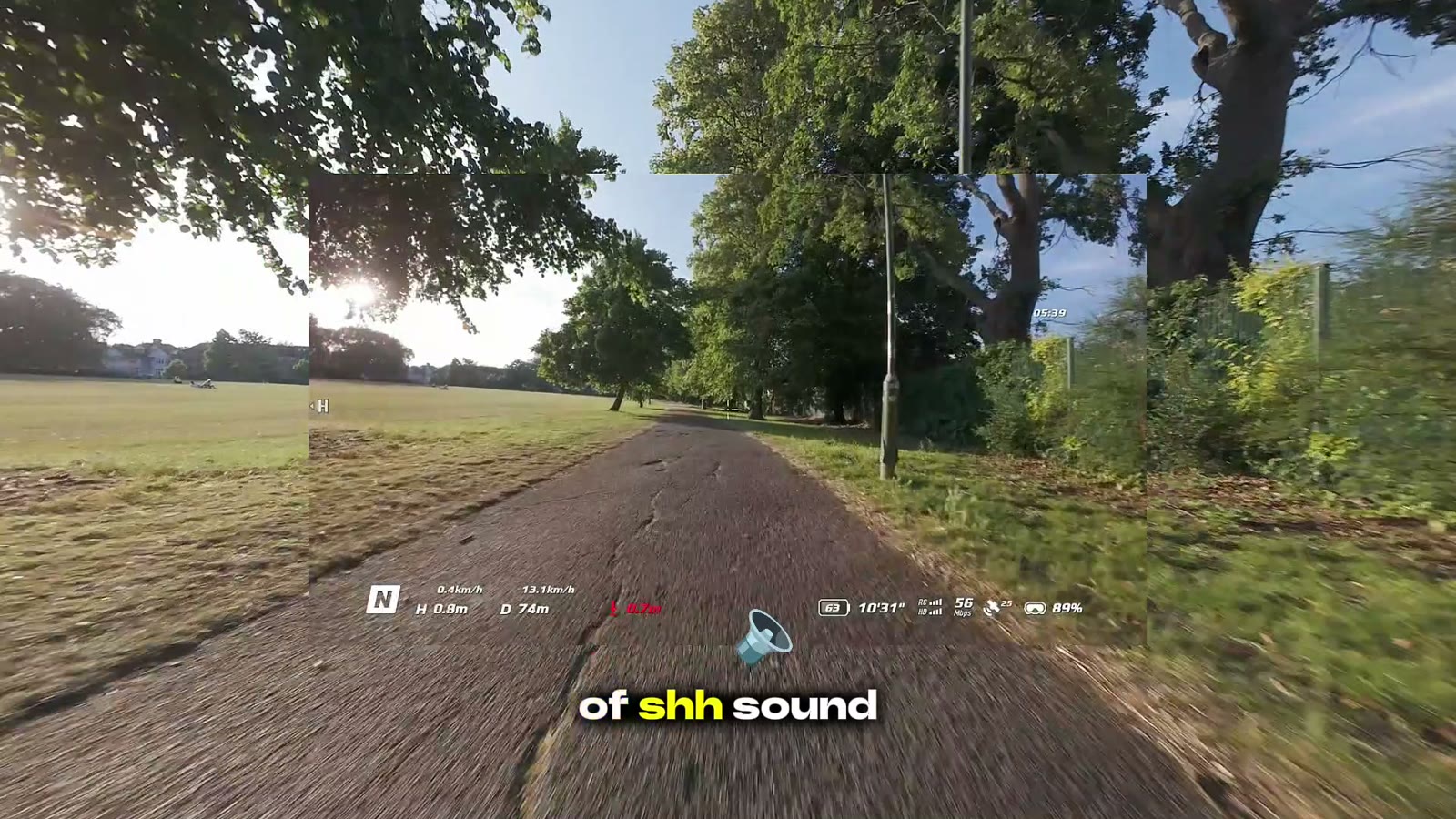
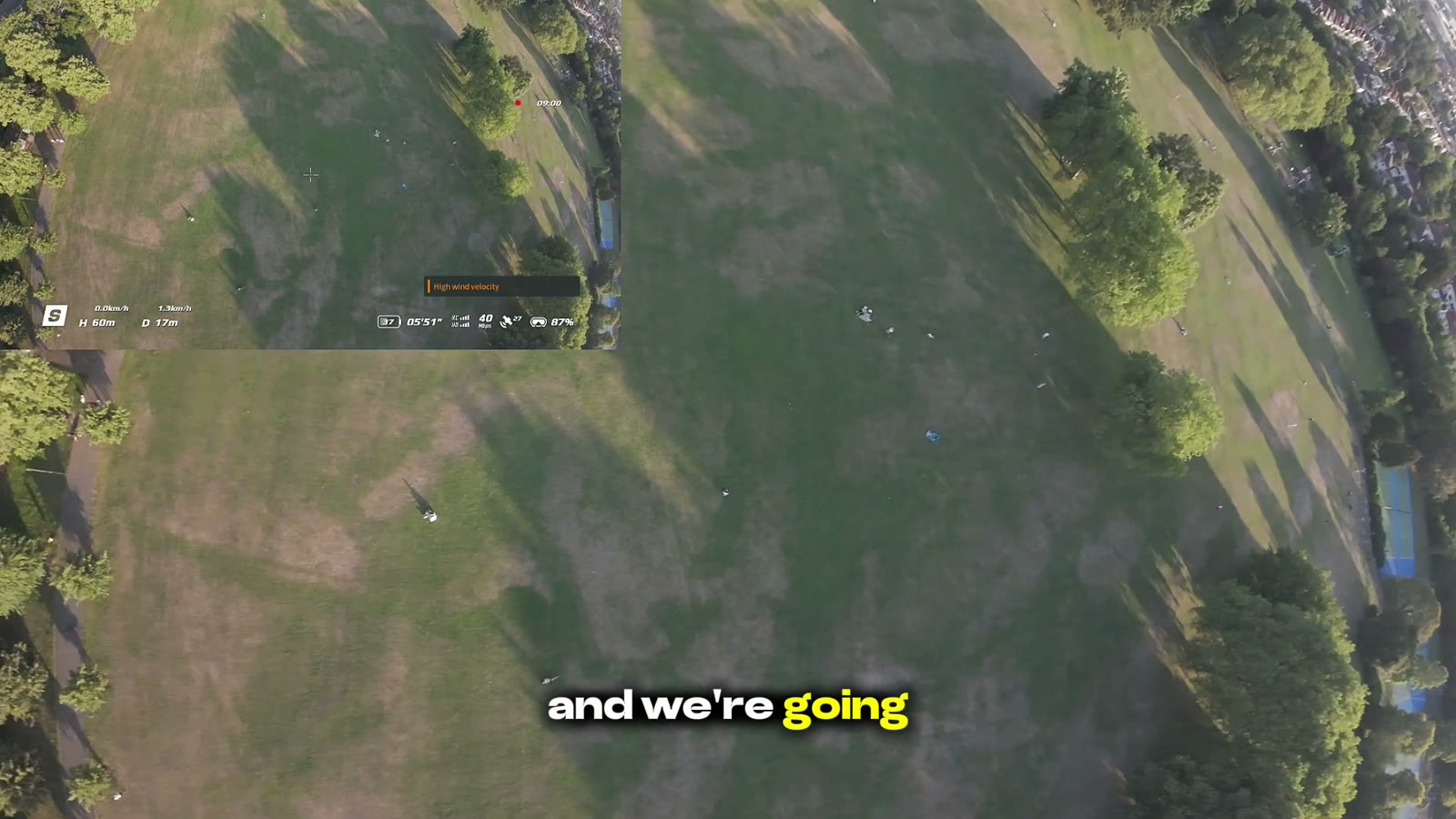
For vertical videos, leave the right edge and the bottom of the frame clear, because that is where each app puts its buttons and the post's own text. The vertical-first shooting guide covers safe areas for 9:16.
Captions make a video accessible, not only watchable
The Web Content Accessibility Guidelines treat captions for pre-recorded video with sound as a basic requirement (success criterion 1.2.2, level A). Captions for accessibility should include the words and the sounds that matter, such as music or a sound that the story depends on. Our caption "of shh sound", with a speaker emoji, describes exactly that kind of sound.
Every word, checked
Automatic captions are a draft. We read every line against the audio, and fix names, products and numbers.
Sounds that matter
If the viewer needs a sound to follow the story, caption it.
Readable contrast
White text with a shadow, or a box behind it if the background is very light.
Captioned tutorials on the channel
Questions
What is the difference between subtitles and captions?
Subtitles usually translate or show the spoken words. Captions show the spoken words and the sounds that matter, for viewers who cannot hear the audio. Many people use the two words for the same thing.
Should captions be burned in or uploaded as a file?
Burned in for social feeds, where the style is part of the edit. A caption file for YouTube, websites and apps, where viewers can switch it on and the text can be updated. For YouTube we often do both.
Which caption file format should I use?
.srt and .vtt are the most common. YouTube accepts both, and .vtt is the standard for video players on websites.
Are automatic captions good enough?
They are a useful first draft. Names, products and numbers are often wrong, so every line should be checked against the audio before the video goes out.
Sources
Work with SwainUK
Planning a shoot like this?
Commercial film and photography in London and Dubai: concept, crew, lighting, shoot and edit, from one team.